For users who rely on tags, a common question is: "Did I forget to tag any time?" There are two ways you can easily identify untagged time.
1. "Untagged time" view
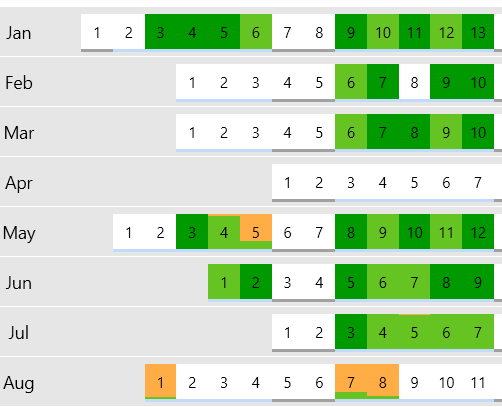
In the Untagged Time report, the colors indicate the tagging status for each day: Dark green - everything is tagged Light green - tagged time Orange - untagged time White - no tracked time
Each day is represented by a rectangle that combines light green and orange if both tagged and untagged time exist. For example, if most of the day is tagged (e.g. 5 hours tagged, a few seconds untagged), the rectangle will mostly appear light green. If no time is tagged on a given day, the entire rectangle will be orange.
2. "Untagged time" view in Advanced search
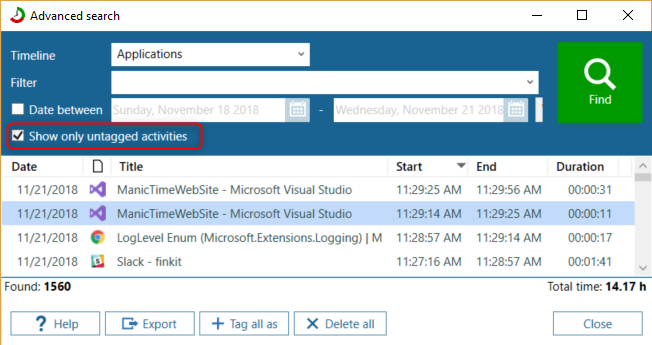
You can also find untagged activities using Advanced Search:
- Open Advanced Search.
- Leave the Filter field empty.
- Check Show only untagged activities.
- Click Find.
The search will list all untagged activities. You can double-click any activity to open it in Day view or tag it directly within Advanced Search.
How is untagged time calculated
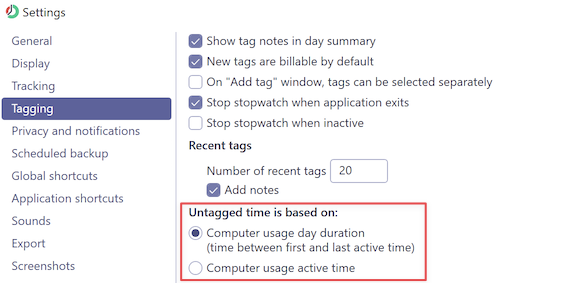
Untagged time can be either based on:
- Computer usage day duration - Time between first and last active time. You can see these values on Day view, above the timelines on the right side (Day start, Day end, Duration).
- Computer usage Active time - Only active time (green part on Computer usage timeline must be tagged)
You can change how it works in Settings, Tagging.