Show tag notes in day summary - Notes will be displayed in bottom right part of Day view
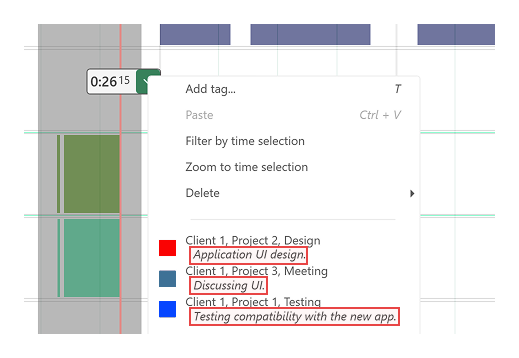
Number of Recent tags - how many tags will show up on dropdown menu on Day view, after you select some time (number of tags in the image below).
Add notes to 10 recent tags - when checked notes will be part of the context menu which shows 10 recent tags
When new tags overlap with existing tags - this setting will be used, when transferring tags from autotags or when using Advanced search for tagging
Allowed tags
ManicTime uses tags to describe your activities - for example, which client, project, or task you were working on. While tags are flexible and customizable, maintaining a consistent structure helps ensure accurate reports and makes it easier to analyze your time data.
With Allowed Tags, you can define a list of tags that ManicTime will recognize. Once enabled, you can only use tags from this predefined list. This helps you keep your tagging organized and prevents accidental tag variations (for example, "Project x, Design" vs. "Design, Project x").
How to Set Up Allowed Tags
To define allowed tags, open the Tag Editor and list your tag combinations — each on its own line. For example:
Client 1, Project X, Activity 1
Client 2, Project Y, Activity 2
After saving, ManicTime will only allow tags that match one of the lines you defined. You will no longer be able to create completely new tag combinations.
Can You Add Extra Tags?
By default, you can append additional tags to any allowed tag. For example, if your allowed tags are:
Client 1, Project X, Activity 1
Client 2, Project Y, Activity 2
You can still tag with:
Client 1, Project X, Activity 1, Sub activity 1
If you want to disable this behavior (so you can use only the exact tags listed), uncheck the option “User can append tags to allowed tags.”
Alternatively, if you want to disable appending only for specific tags, add ,. at the end of those lines:
Client 1, Project X, Activity 1,.
Client 2, Project Y, Activity 2,.
Using Partial Tags for Easier Setup
If your tag list follows a repeating structure (for example, each project has sub-tags for Design, Programming, and Testing), you can use partial tags to generate them automatically.
Example:
Project X,
Project Y,
,Design,
,Programming,
,Testing,
,,Task1
,,Task2
This will automatically create the following tag combinations:
Project X, Design, Task1
Project X, Design, Task2
Project X, Programming, Task1
Project X, Programming, Task2
Project X, Testing, Task1
Project X, Testing, Task2
Project Y, Design, Task1
Project Y, Design, Task2
Project Y, Programming, Task1
Project Y, Programming, Task2
Project Y, Testing, Task1
Project Y, Testing, Task2
When to Use Allowed Tags
Allowed Tags are especially useful when:
- You want to keep your tag names consistent over time.
- You work on structured projects with defined naming conventions.
- You want to avoid typos or inconsistent tagging that can affect reports.
By defining Allowed Tags, you ensure your data stays clean, structured, and easy to analyze.