ManicTime marks time as Away after the configured period without keyboard or mouse activity. Set the inactivity period in Settings → Tracking; the default is 10 minutes.
Don't go away if any application is preventing sleep - Use this setting when an application, such as a video player or meeting app, keeps the display awake while you are not using the keyboard or mouse.
Track window titles and documents - When unchecked, ManicTime still tracks applications but does not record their window titles or document details. This does not turn off screenshots; control screenshot capture separately in Settings → Screenshots.
Track private browsing - Privacy mode or "private browsing" or "incognito mode" is a privacy feature in some web browsers to disable browsing history and the web cache. ManicTime will try to figure out if you are using private browsing and it will not track the usage if this is unchecked. We test private browsing in Firefox, Chrome, Opera and IE. Other browsers might work, but are not officially supported.
Tracking schedule - By default, ManicTime will track usage all the time. This option allows you to restrict ManicTime tracking to specific hours.
Do not track all... - You can set ManicTime to not track specific applications, web sites or documents. You can also set it to stop tracking when specific word is in title.
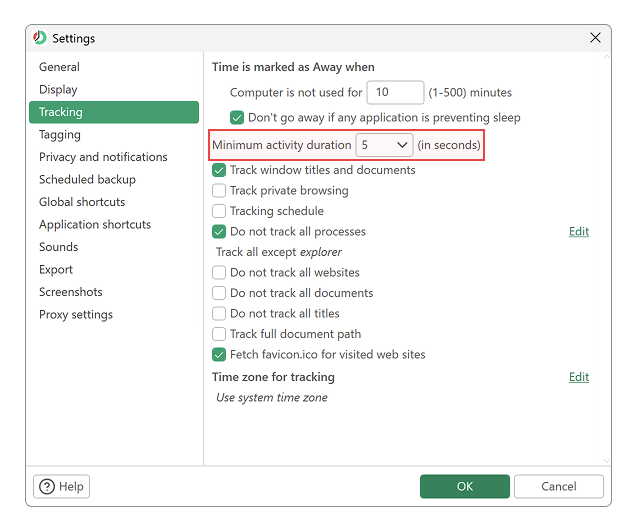
Minimum tracking activity duration
By default, ManicTime tracks applications, which are in use for more than 5 seconds. So if you quickly switch to one application and back to the previous one, ManicTime will not pick this up. Extending this interval means that the captured data is not as accurate, but ManicTime generates less of it.
|
| Minimum tracking activity duration |
Time Zone for tracking
ManicTime has always worked well for users who stay in one location, but frequent travelers often experienced tracking inconsistencies when changing time zones.
By default, ManicTime tracks all time in your local time zone. This works fine if you don't move between time zones, but for travelers, it can cause overlapping entries. For example, if you work from 9 AM to 11 AM in Paris, then fly to New York and work from 9 AM to 11 AM there, ManicTime would record two separate 9-11 AM blocks on the same day, creating confusion in your timeline.
Now, you can choose to always track time in your home time zone. When enabled, all activities will appear as if they occurred in your home zone, ensuring consistent records no matter where you are.
Example: If your home time zone is New York (EST) and you're working in Tokyo, a meeting that starts at 9 AM Tokyo time will be recorded as 7 PM the previous evening in New York time. This keeps your entire timeline consistent and prevents overlapping entries.
When you change this setting, ManicTime will operate as if the device is in the selected time zone:
- Backups will run at the scheduled time in your selected time zone
- The Day view and all timestamps will display according to the selected time zone
- All tracking will align with your home time zone regardless of your physical location
In short, the entire application will behave as though your device is located in your chosen home time zone.