The AI assistant is a chat in the ManicTime Server web pages. You ask questions in your own words, and the assistant reads your ManicTime data to answer. It can also tag time for you.
Before you start
- ManicTime Cloud: the AI assistant is part of the Ultimate AI plan.
- On-premises server: an administrator must set up the AI connection first. See AI administration.
If AI is not available, only administrators see the AI assistant button. When an administrator clicks it, a dialog tells you what is missing. On ManicTime Cloud, click Upgrade to open the subscription page. On an on-premises server, click Configure to open the AI connection page.
Open the AI assistant
- In the left navigation, click AI assistant. It is the first item.
- Type your question in the box, for example "How much time did I spend in meetings last week?".
- Press Enter, or click the arrow button.
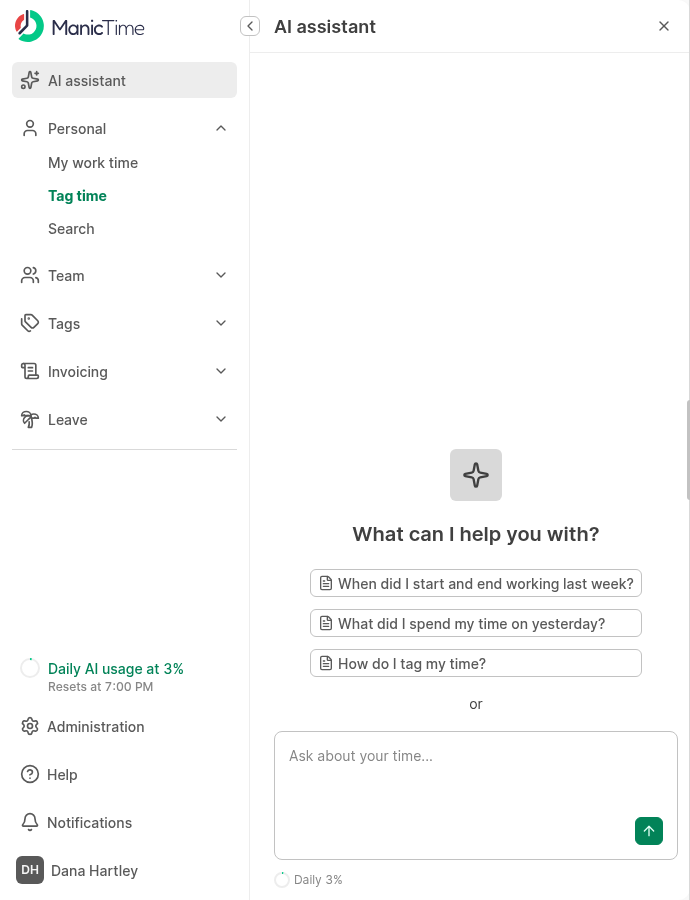
The answer appears in the panel. While the assistant works, the panel shows "Thinking..." or the name of the tool that it uses.
To stop an answer, click the stop button in the message box.
Starter messages
A new chat can show starter messages. A starter message is a prepared question from ManicTime or from the administrator. Click one to send it.
If there are more than three, click Starter messages to see the list.
What the assistant can do
Warning: The assistant can change your data. It does not ask you before it saves tags or changes autotags. Check the result on the Tag time page.
The assistant can:
- Answer questions about your tracked time: applications, websites, documents, tags and totals.
- Tag time for you. You can tell it which tags to use for which time.
- Start AI tagging for one day or for more days.
- Confirm the drafts that AI tagging made.
- Show and change your autotags.
- Search the ManicTime help. See Help answers.
The assistant uses the same tools as AI tools that connect through MCP. See Available AI (MCP) tools.
The assistant answers only questions about ManicTime. It declines other questions.
The assistant can do only what your account can do. For example, it can read the data of other users only if your account can see their data, and it can tag their time only if your account can tag time for them.
When the assistant uses a tool, the tool name shows in the chat. Click the name to see the request and the response.
Chats
- The server keeps your chats. You can continue a chat later, in any browser and after a server restart.
- Other users cannot see your chats.
- An answer continues on the server when you close the panel. A dot on the AI assistant button shows a new answer.
- The panel shows your recent chats. Click Older chats to see all of them.
- To delete a chat, click the delete button next to it.
- You can keep a maximum of 10 chats. When you start a new chat, ManicTime deletes the oldest chats above this number.
If the server stops while the assistant answers, the chat list shows a pause icon next to the chat, and the chat shows "Interrupted". Send a new message to continue.
Limits
Some servers have limits for the AI assistant. ManicTime Cloud has both limits. On an on-premises server, the administrator decides.
- Daily AI usage limit. This is the maximum AI usage for one user in one day. The assistant, AI tagging and AI note summaries use the same limit. When you reach it, ManicTime shows "Daily usage limit reached. You can chat again tomorrow." The limit resets at midnight UTC.
- Chat size. A long chat becomes full. ManicTime shows "This chat is full. Start a new chat to continue."
If a limit is set, the bottom of the panel shows how much you used, for example Daily 40% and Chat 75%. The left navigation also shows your daily AI usage. See Daily AI usage limit.
What data the assistant uses
To answer, ManicTime sends this data to the AI provider:
- Your messages and the earlier messages of the same chat.
- The ManicTime data that the assistant reads to answer, for example your activities and tags.
On ManicTime Cloud, ManicTime selects the AI provider. On an on-premises server, the administrator selects the AI provider in AI administration.
Help answers
For questions about how ManicTime works, the assistant searches the ManicTime help at docs.manictime.com. The server sends the search text to docs.manictime.com. The assistant writes this text from your question. The request also contains the product name and the server version. The server sends no activity data and no chat history. The documentation site stores the search text, as it stores searches from its own search box.
The pages that the search found show under the answer, below Learn more.
On an on-premises server, an administrator can turn off the help search in the configuration file:
{
  "helpDocs": {
    "enabled": false
  }
}
If the server cannot connect to docs.manictime.com, the assistant answers without the help pages.