AI tagging reads the activity of one day and suggests tags for the time that has no tags. You start it on the Tag time page. ManicTime can also tag each day automatically when the day ends.
A draft is a tag that AI suggested and that nobody reviewed yet. A draft stays a draft until you confirm it, change it or reject it. The administrator decides if AI saves drafts or final tags. See Review mode.
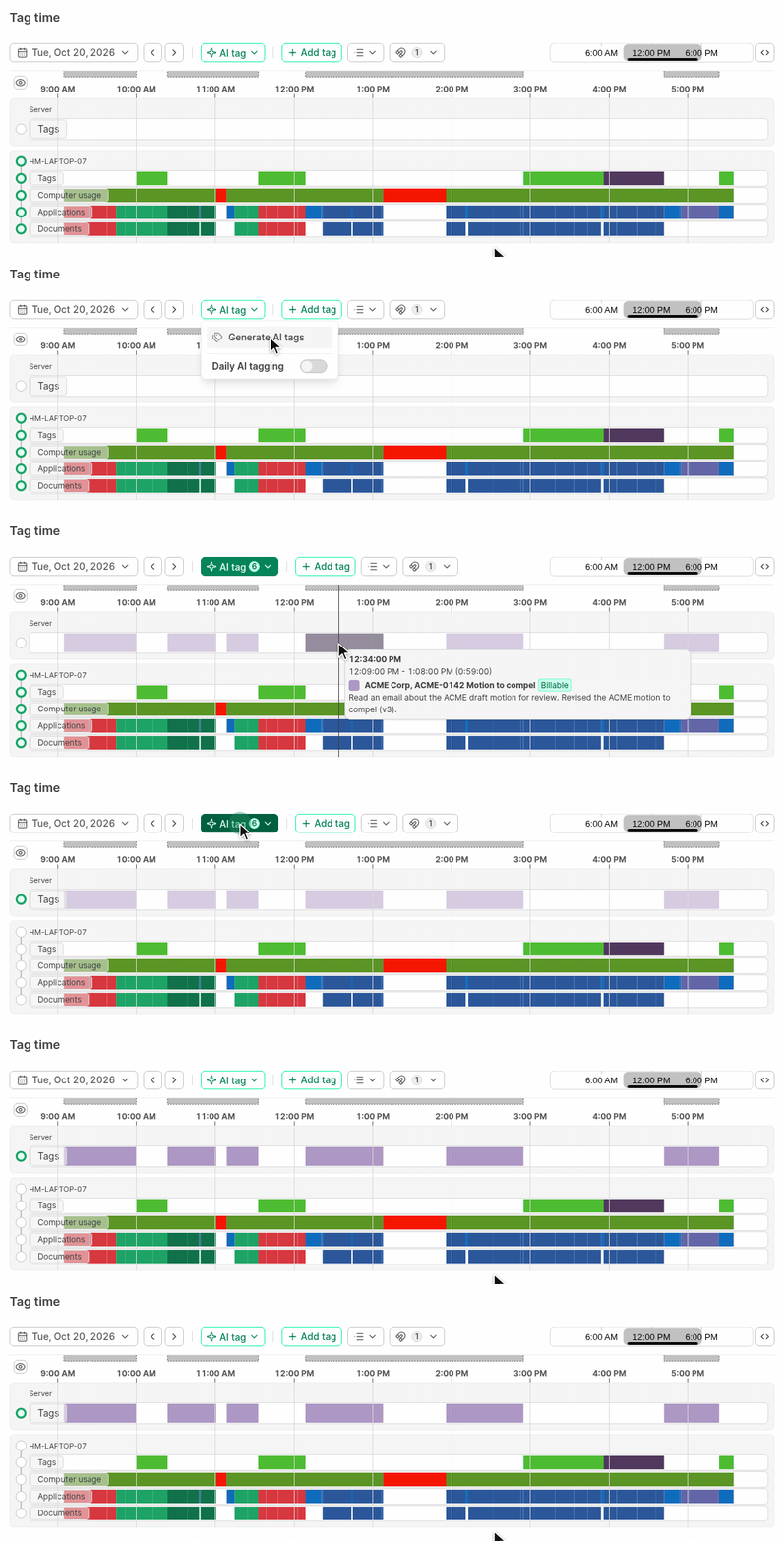
Before you start
- ManicTime Cloud: AI is part of the Ultimate AI plan.
- On-premises server: an administrator must set up the AI connection first. See AI administration.
If AI is not available, the AI buttons are hidden. Administrators still see them. When an administrator clicks one, a dialog tells you what is missing:
- On ManicTime Cloud, the dialog says "AI is not included in your plan. Upgrade your plan to use it." Click Upgrade to open the subscription page.
- On an on-premises server, the dialog says "Before you can use AI you need to configure the AI connection." Click Configure to open the AI connection page.
Tag a day with AI
- Click Personal, then Tag time.
- Go to the day that you want to tag.
- Click AI tag above the timelines.
- Click Generate AI tags.
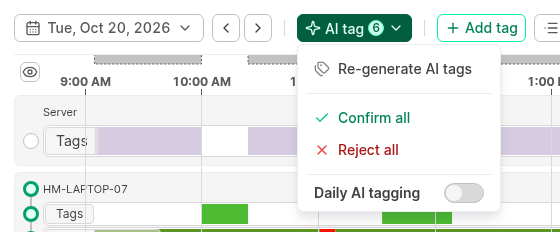
The image shows the menu on a day that already has drafts. Only then does the menu have Confirm all and Reject all.
AI tags only the time that has no confirmed tags. Your own tags stay as they are.
While AI tagging runs:
- The AI tag button shows a stop icon. To stop the run, click the button and then click Yes.
- You cannot tag manually on the tag timeline. The timeline shows "AI tagging in progress. Manual tagging is unavailable."
- You can leave the page. The run continues on the server.
When the run ends, you get a notification, for example "AI tagging completed". Click the notification to open the day.
If the day already has drafts, the menu item is Re-generate AI tags. AI then deletes the drafts of that day and makes new ones. Confirmed tags do not change.
Which devices AI reads
AI reads only the devices that the Tag time page shows. If you hide a device in the Device editor, AI does not tag its time.
If two devices are active at the same time, AI uses the device that is first in your device order. Put the device that you work on first.
Tag for another user
If you tag time as another user, AI tag runs for that user. The run uses the daily AI usage limit of that user, not your limit. The notification shows the name of the user, for example "AI tagging for Anna completed". This notification does not open the day.
Review drafts
When the day has drafts, the AI tag button shows the number of drafts. On the tag timeline, drafts have a lighter color than confirmed tags.
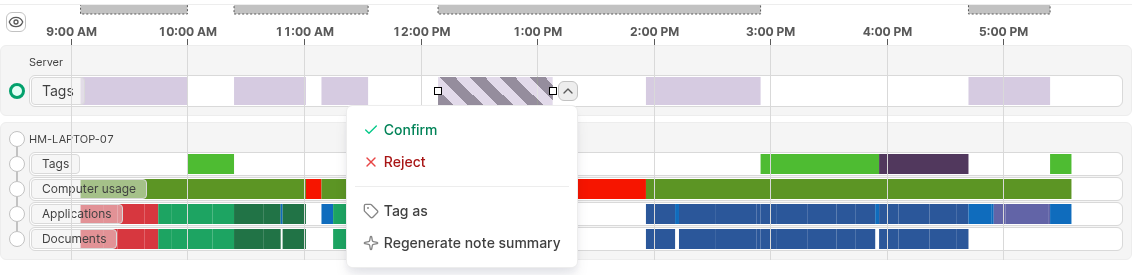
To review one draft:
- Click the draft on the tag timeline.
- Click the menu button next to the draft.
- Click one of these items:
- Confirm - keeps the draft as a tag.
- Reject - deletes the draft.
- Tag as - opens the tag window (the window that Add tag opens). Change the tags or the note, then save. The draft becomes a confirmed tag with your changes.
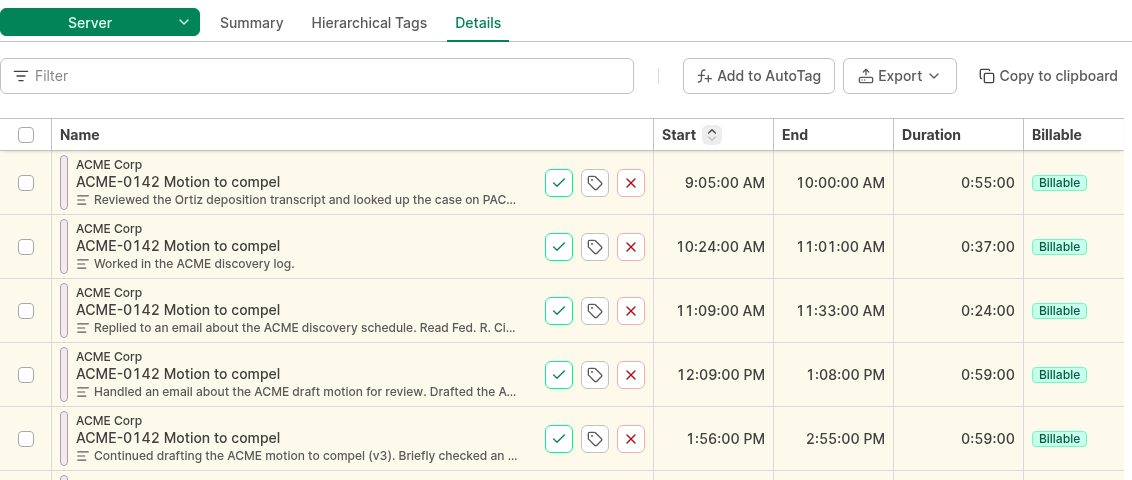
You can also review drafts in the list below the timelines. Select Server in the list, then click Details. Each draft shows the note that AI wrote, and the buttons Confirm, Tag as and Reject.
To review all drafts of the day:
- Click AI tag.
- Click Confirm all or Reject all.
A draft stays a draft if its tag is not on the allowed tags list. Confirm all does not confirm it, and automatic acceptance does not confirm it.
Review mode
The administrator sets the review mode in AI administration. It applies to all users on the server.
| Review mode | What happens to AI tags |
|---|---|
| No review | AI saves final tags. There are no drafts. |
| Give time to review | AI saves drafts. If you do not review a draft, ManicTime accepts it automatically after the set number of days (1 to 7). |
| Manual review | AI saves drafts. A draft stays a draft until you confirm it or reject it. |
With Give time to review, the days start on the day when AI made the draft, not on the day that the draft tags. ManicTime counts full days and checks once each hour. For example, with 3 days, a draft that AI made on Monday is accepted on Friday.
When the administrator changes the review mode, the change also applies to drafts that already exist:
- No review accepts all drafts that exist.
- Give time to review accepts the drafts that are older than the set number of days.
Daily AI tagging
Daily AI tagging tags each day automatically when the day ends.
- Click AI tag.
- Turn on Daily AI tagging.
- Read the dialog, then click Got it.
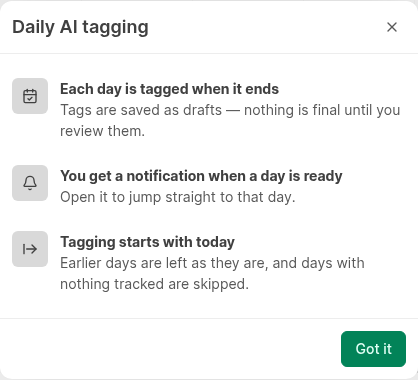
The switch shows only when AI is available. It applies to the user whose day is open. If you turn it on while you tag as another user, it applies to that user.
Daily AI tagging works like this:
- Each day is tagged when it ends. If the review mode is not No review, AI saves drafts. You review them as usual.
- You get a notification when a day is ready. Click the notification to open that day.
- Tagging starts with today. Earlier days do not change.
AI does not tag a day in these cases, and you get no notification:
- Nothing was tracked on that day.
- You already tagged all the time of that day.
- The day already has drafts. AI does not replace drafts that you did not review.
If the server is off for more than one day end, AI tags only the last day.
If you reach the daily AI usage limit, AI does not tag the day. You get the notification "Daily AI tagging was skipped because the daily AI usage limit was reached." You can tag that day later with AI tag.
If you also use Daily copy autotags to tags, autotags go first. AI then tags only the time that autotags did not tag. See Autotagging.
Daily AI usage limit
On ManicTime Cloud, the plan sets a daily AI usage limit. This is the maximum AI usage for one user in one day. AI tagging, AI note summaries and the AI assistant use the same limit.
The left navigation shows your usage above Administration, for example "Daily AI usage at 40%". It also shows when the usage resets, for example "Resets at 02:00". The limit resets each day at midnight UTC. The page shows that time in your local time.
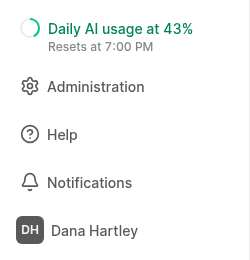
When you reach the limit, you cannot start AI tagging. ManicTime shows "Daily AI usage limit reached. You can use AI tagging again tomorrow." A run that already started always ends normally.
AI note summary
AI can write the note of a tag for you. It summarizes what you did in the time of the tag.
To write a note summary in the tag window:
- Select time on the timelines, then click Add tag.
- Above the Notes box, click Generate summary.
- Read the note and change it if necessary.
- Save the tag.
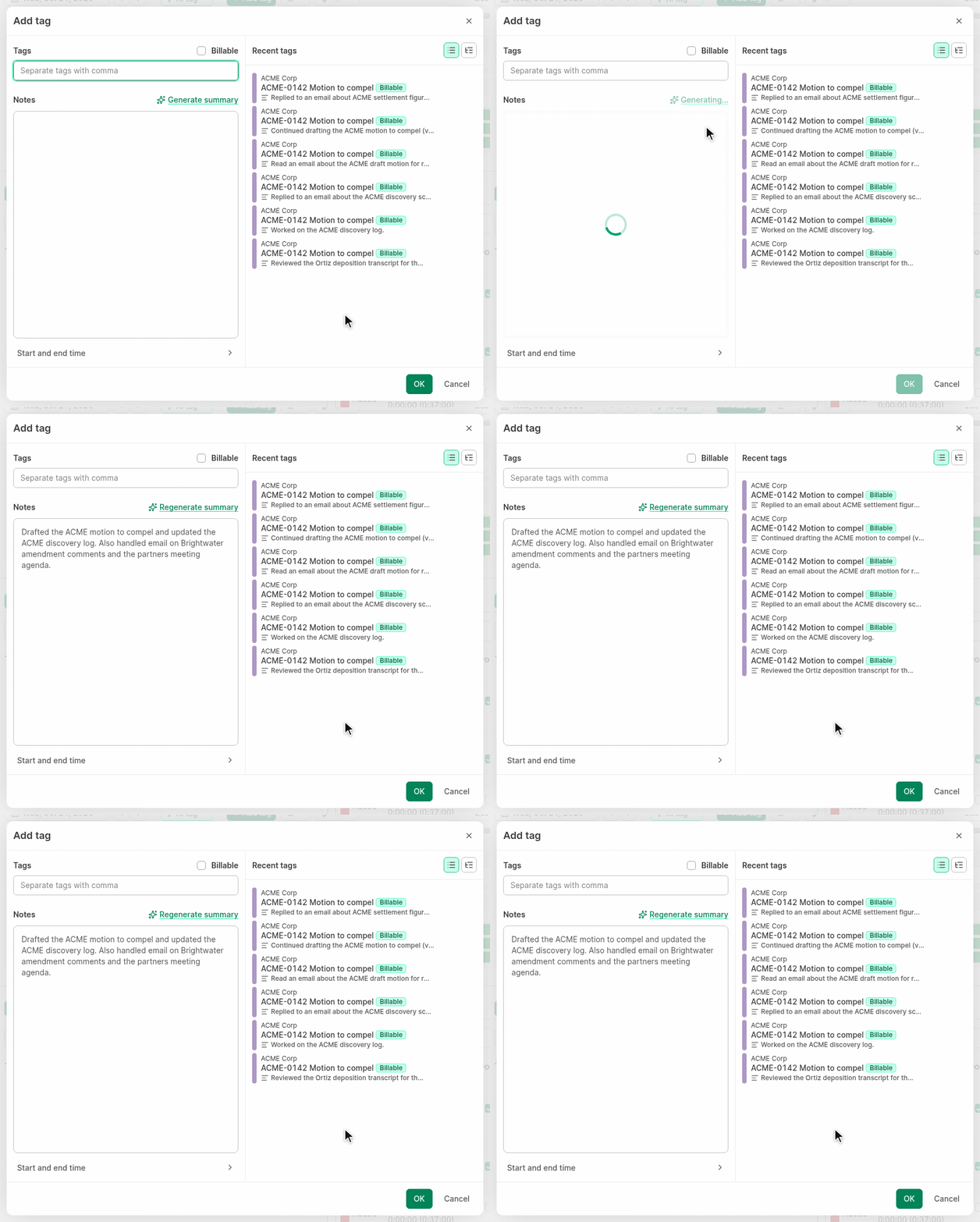
Select the tags before you click Generate summary. If you click a recent tag that has a note, its note replaces the text in the Notes box.
To write a note summary for a tag that exists:
- Click the tag on the tag timeline.
- Click the menu button next to the tag.
- Click Generate note summary.
- In the tag window, read the note and change it if necessary.
- Save the tag.
If the tag already has a note, the items are Regenerate summary and Regenerate note summary. The new summary replaces the text in the Notes box. ManicTime saves nothing until you save the tag window.
You can also use Generate note summary on a draft. When you save the tag window, the draft becomes a confirmed tag.
Some rules:
- The time of the tag can be a maximum of 24 hours.
- If there is no activity in that time, ManicTime shows "There is no activity in this time interval to summarize."
- A note summary uses the daily AI usage limit. When you reach the limit, the summary items are not available.