ManicTime Server has these AI features:
- AI tagging suggests tags for a day.
- AI note summaries write the note of a tag. See AI note summary.
- The AI assistant is a chat that answers questions about your time and can tag time.
This page tells administrators how to set up these features.
ManicTime Cloud and on-premises servers
ManicTime Cloud
- AI is part of the Ultimate AI plan.
- ManicTime supplies the AI connection. You do not set up an AI provider.
- Administrators can open the AI tagging and Starter messages pages.
On-premises server
- You use your own AI provider and API key.
- An administrator must set up the AI connection before users can use AI.
- Administrators can open the Connection, AI tagging and Starter messages pages.
Until AI is available, users do not see the AI buttons. Administrators see them. When an administrator clicks one, a dialog tells you what is missing. On ManicTime Cloud, Upgrade opens the subscription page. On an on-premises server, Configure opens the Connection page.
Open the AI pages
- Click Administration.
- Find the AI section: "Configure the AI connection, AI tagging and starter messages."
- Click Connection, AI tagging or Starter messages.
AI connection
The Connection page is only on on-premises servers. It sets the AI provider that all AI features use.
ManicTime uses the OpenAI-compatible chat API of the provider. You can use OpenAI, Azure OpenAI or another provider with an OpenAI-compatible API.
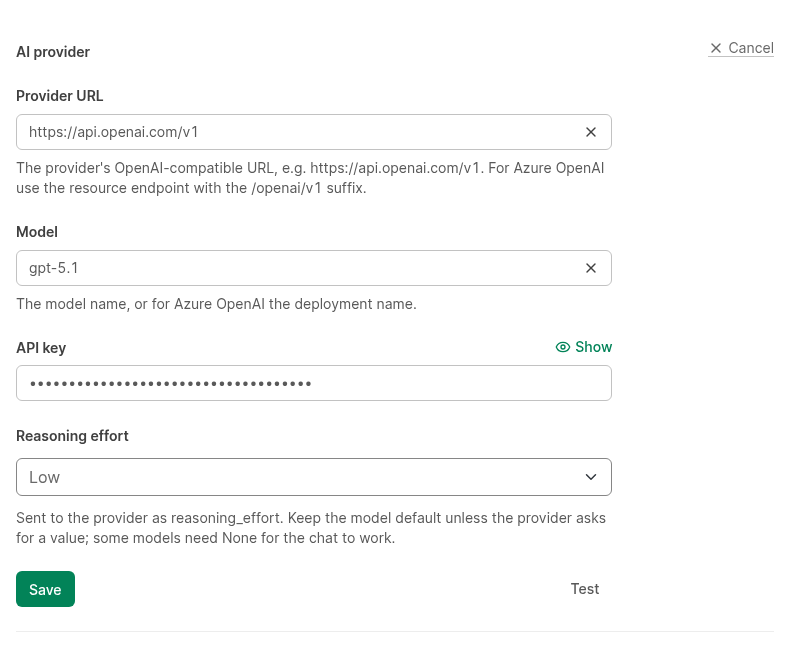
- Go to Administration, then AI, then Connection.
- Next to AI provider, click Edit.
- In Provider URL, type the OpenAI-compatible URL of the provider, for example
https://api.openai.com/v1. - In Model, type the name of the model.
- In API key, type the API key from the provider.
- Optional: select a Reasoning effort.
- Click Test.
- If the test is successful, click Save.
For Azure OpenAI:
- Provider URL is the resource endpoint with the
/openai/v1suffix. - Model is the deployment name.
Reasoning effort
ManicTime sends the reasoning effort to the provider with each AI request. The values are Model default, None, Low, Medium, High and Extra high.
Keep Model default unless the provider asks for a value. With Model default, ManicTime sends no value. Some models need None for the AI assistant to work.
Test the connection
Test sends one short request with the values that you typed. It does not save the values.
| Result | What to do |
|---|---|
| "Test successful" | Save the connection. |
| "The API key was refused: ..." | Check the API key. |
| "Nothing answered the chat request. Check the provider URL (for OpenAI it ends with /v1) and the model name: ..." | Check the Provider URL and the Model. |
| "The server could not reach the provider: ..." | Check the Provider URL and the network connection from the server to the provider. The test stops after 30 seconds. |
| "The test failed: ..." | Read the error text from the provider. |
Each test uses a small part of the daily AI usage limit of your account.
AI tagging
The AI tagging page sets AI tagging for all users on the server.
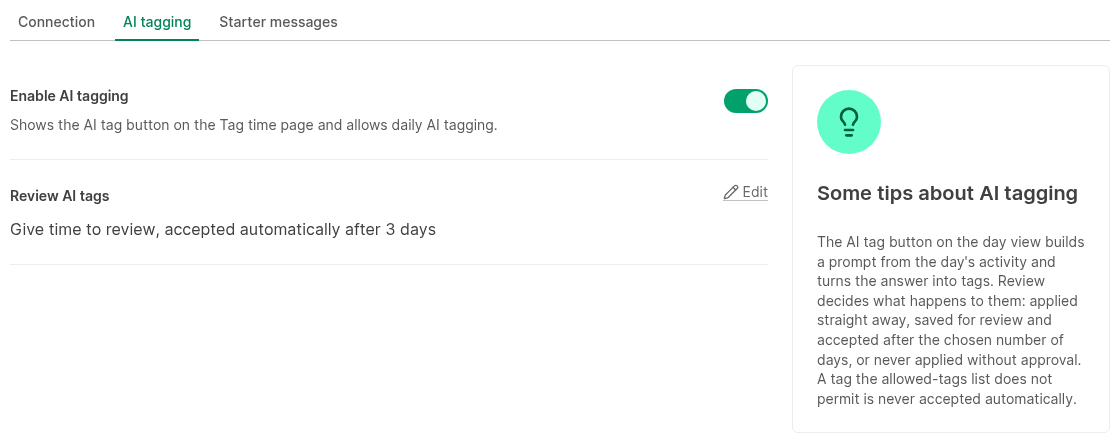
Enable AI tagging
Enable AI tagging shows the AI tag button on the Tag time page and allows daily AI tagging. It is on by default.
When you turn it off:
- Users do not see the AI tag button.
- Daily AI tagging stops for all users.
Review AI tags
Review AI tags decides what AI does with its tags. A draft is a tag that AI suggested and that nobody reviewed yet.
| Option | Result |
|---|---|
| No review | "AI tags are applied immediately." AI saves final tags. |
| Give time to review | AI saves drafts. ManicTime accepts a draft automatically after 1 to 7 days. |
| Manual review | "Never apply AI tags without my approval." Drafts stay until a user confirms or rejects them. |
The default is Give time to review with 3 days.
With Give time to review, the days start on the day when AI made the draft. Users can see how this works in Review mode.
A draft whose tag is not on the allowed tags list is never accepted automatically.
Warning: A change of the review mode also changes drafts that already exist, for all users.
- If you select No review, ManicTime accepts all drafts that exist now. ManicTime asks "Unreviewed AI tags that already exist will be accepted now. Continue?" You get a notification when the drafts are confirmed.
- If you select Give time to review, or make the number of days smaller, ManicTime accepts all drafts that are older than the new number of days. This happens in the next hour. ManicTime asks you before it saves.
- If you turn Enable AI tagging on again while the mode is No review or Give time to review, ManicTime also asks you first.
Starter messages
Starter messages are prepared questions that users see when they start a new chat in the AI assistant.
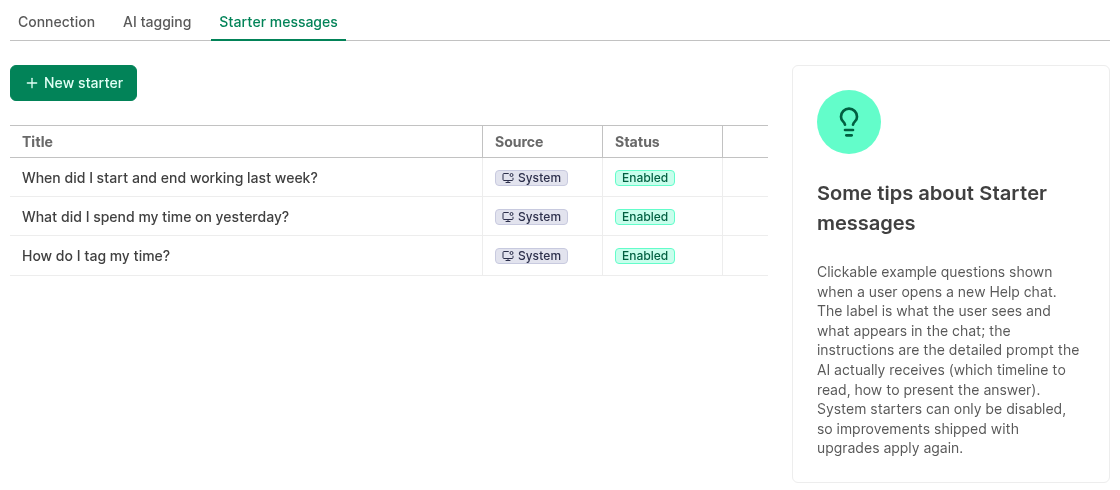
Each starter message has:
- Title: the text that users see on the button. Maximum 100 characters.
- Instructions: the full request that the AI gets, for example which data to read and how to show the answer. Maximum 4000 characters.
There are two types, shown in the Source column:
- System starter messages come with ManicTime. You cannot change or delete them. You can only View, Clone, Disable or Enable them. When you upgrade the server, ManicTime can improve them.
- User starter messages are the ones that administrators make. You can Edit, Clone, Disable, Enable and Delete them.
To add a starter message:
- Go to Administration, then AI, then Starter messages.
- Click New starter.
- Type the Title.
- Type the Instructions.
- Click OK.
To change a system starter message, click Clone. Change the copy, then disable the system starter message.
The AI assistant shows only enabled starter messages. If there are more than three, users select them from a list.
Daily AI usage limit
The daily AI usage limit is the maximum AI usage for one user in one day. The AI assistant, AI tagging, AI note summaries and the connection test use the same limit. The limit resets at midnight UTC.
When a user reaches the limit:
- The user cannot send chat messages, start AI tagging or make note summaries until the limit resets.
- Daily AI tagging does not tag the day of that user. The user gets a notification.
- A request that already started always ends normally.
AI tagging for another user uses the limit of the user whose day is tagged.
ManicTime Cloud: the plan sets the limit.
On-premises server: there is no limit by default. You set a limit in the configuration file. ManicTime calculates the usage from the token prices that you enter for each model. A model without a price row does not count toward the limit.
{
  "ai": {
    "limits": {
      "maxDailyCost": 0.5
    },
    "usagePricing": [
      {
        "model": "your-model-name",
        "date": "2026-01-01",
        "pricing": {
          "inputTokensPerMillion": 1.25,
          "cachedInputTokensPerMillion": 0.125,
          "outputTokensPerMillion": 10
        }
      }
    ]
  }
}
maxDailyCostis the limit for one user in one day, in the currency of your prices.modelmust be the same as the Model on the Connection page.dateis the first day on which the price applies. When the price changes, add a new row with a new date.
Remove AI from an on-premises server
The Enable AI tagging switch turns off only AI tagging. To remove all AI features, add this to the configuration file:
{
  "FeatureManagement": {
    "HideAi": true
  }
}
This hides the AI assistant, AI tagging, AI note summaries, the daily AI usage indicator and the AI section in Administration. It applies to all users, administrators too. Users can still confirm or reject drafts that exist, one at a time.