On the Developer page, you give scripts and other applications access to the ManicTime Server API. The page has two tabs:
- API tokens - for scripts. A token lets a script use the API as one user.
- API clients - for applications that users sign in to through the web, for example a reporting service, a desktop tool, ChatGPT or Claude.
Go to Administration -> Developer. Only administrators can see this page.
The Developer page is available only on on-premises servers with the new sign-in system. On a server with the old sign-in system, scripts sign in as described in On premise authentication. To switch, see Sign-in methods. ManicTime Cloud has its own Developer page, see Cloud authentication.
API tokens
An API token lets a script use the API as the user that you choose. The script has the roles and rights of that user.
Add an API token
- Go to Administration -> Developer -> API tokens.
- Click Add API token.
- In Name, describe the script that uses the token, for example Power BI report.
- In User, select the user that the script acts as. You can select only active users.
- In Expiration, select 30 days, 90 days, 1 year, Custom date… or Never.
- Click Create.
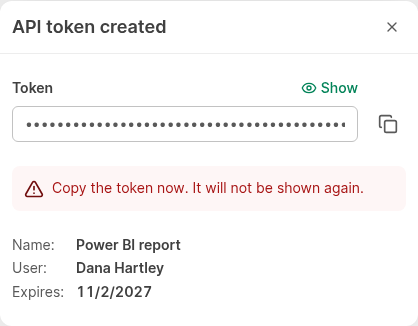
- Copy the token and keep it in a safe place.
Warning: ManicTime Server shows the token only one time. If you lose it, delete the token and add a new one.
Use an API token
The script sends the token in the Authorization header of each request:
GET https://manictime.example.com/api/timelines
Authorization: Bearer mt_api_<token>
Accept: application/vnd.manictime.v3+json
For the API itself, see Timeline API and On premise authentication.
Manage API tokens
The list shows each token with Name, User, Created by, Created, Last used and Expires. An expired token stays in the list and shows the word Expired with the date.
- To change the name, click Edit. You cannot change the user or the expiry date. For a different user or expiry date, add a new token.
- To stop a token, click Delete. Scripts that use the token stop working immediately.
A token stops working when its user is archived. When you delete a user, ManicTime Server also deletes the user's tokens.
API clients
An API client is an application that users sign in to through the web. The user signs in on the ManicTime Server sign-in page with any enabled sign-in method. The application then uses the API as that user.
There are two types of API clients:
- Web application - has a client secret. Runs on a server, for example a reporting service.
- Native application - has no client secret. Runs on the user's device: desktop, mobile and command-line apps.
Add an API client
- Go to Administration -> Developer -> API clients.
- Click Add API client.
- In Name, enter the name of the application. Users see this name when they sign in.
- In Type, select Web application or Native application.
- In Redirect URIs, enter the address where the application receives the sign-in result. To add more addresses, click Add redirect URI.
- Click Create.
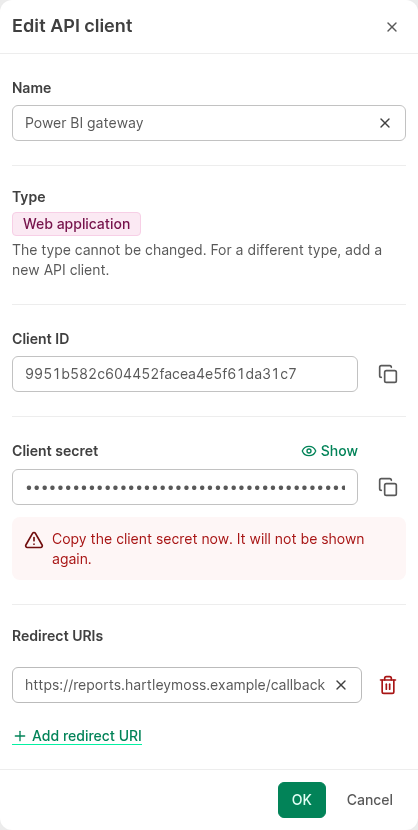
- Copy the Client ID.
- If the client is a Web application, copy the Client secret and keep it in a safe place.
- Click OK.
Warning: ManicTime Server shows the client secret only one time. If you lose it, click Edit and then Regenerate secret. The old secret stops working immediately.
Rules for redirect URIs:
- A Web application uses HTTPS, or HTTP on the user's own machine (
127.0.0.1,[::1]orlocalhost). - A Native application uses HTTPS, HTTP on the user's own machine, or the application's own scheme, for example
com.example.app:. - If a Native application has a redirect URI on
127.0.0.1,[::1]orlocalhostwithout a port, the application can use any free port. - A redirect URI cannot have a fragment (
#).
Manage API clients
The list shows each client with Name, Type, Client ID, Redirect URIs and Last used.
- To change the name or the redirect URIs, click Edit. You cannot change the type. For a different type, add a new API client.
- To remove a client, click Delete. Everyone who signed in through the client loses access immediately.
For developers: the application uses OAuth 2.0 authorization code flow with PKCE. See On premise authentication.
Connect ChatGPT or Claude
On a server with the new sign-in system, ChatGPT, Claude and other AI tools can connect to ManicTime Server through MCP (Model Context Protocol). Each user signs in with their own account. For each AI tool, you add one API client.
One API client is enough for all users of the same AI tool. A script or an AI tool that can send its own Authorization header can also use an API token.
For the steps, see Connecting AI to ManicTime Server.