ManicTime Server v2026.3 has a new sign-in system. With it, users sign in with Windows, Microsoft Entra ID or an email and password. One user can have more than one sign-in method.
The new sign-in system is for on-premises ManicTime Server only. ManicTime Cloud keeps its own sign-in.
What the new sign-in system does
- Sign-in methods: users sign in with Windows, Entra or Email and password. An administrator enables the methods on the Sign-in methods page.
- More than one method for one user: for example, a user can sign in with Windows at the office and with a password from home. All the methods of a user sign in to the same account, with the same data and the same license.
- Directory sync: for Windows and Entra users, ManicTime Server reads the name, the email address and the account status from the directory.
- Invitations: when you add a user with Email and password, the user gets an invitation link and sets their own password.
- Self-service password reset: users who forget their password can get a reset link by email.
Licenses are counted per user, not per sign-in method.
Which servers use it
- A new installation of ManicTime Server v2026.3 uses the new sign-in system.
- An existing server keeps the old sign-in system when you update it. You can switch to the new system when you are ready. See Switch to the new sign-in system.
To see which system your server uses, go to Administration -> User management -> Sign-in methods. If the page shows New sign-in system available, the server uses the old sign-in system.
Sign-in methods
Go to Administration -> User management -> Sign-in methods. The page shows each method with a toggle that enables or disables it.
- Email and password - users sign in with a ManicTime account. This method is available on all servers.
- Windows - users sign in automatically with their Windows domain account. This method is available only when ManicTime Server runs on Windows.
- Entra - single sign-on with your organization's Microsoft Entra ID. The method shows Not configured until you set it up. See Microsoft Entra sign-in.
You cannot disable the method that you are signed in with. This makes sure that you do not lock yourself out.
Default sign-in method
Click Set as default next to a method to make it the default. When a user opens the server and is not signed in, the server uses the default method:
- Windows signs the user in automatically. If this is not possible, the browser asks for the Windows user name and password.
- Entra opens the Microsoft sign-in page.
- Email and password shows the sign-in page.
The sign-in page is always available at https://<your server>/sign-in. Use it to sign in with a different method than the default.
To remove the default, click Remove default. Without a default, the server shows the sign-in page. If only one method is enabled, that method is always the default.
Create users automatically
Windows and Entra have the option Create users automatically. For Windows, click Edit to change it. The Edit link shows only while the method is enabled. For Entra, the option is in the form that opens when you click Configure. When someone signs in for the first time, ManicTime Server creates a user for them. If no license is available, the new user is created as archived.
When this option is off, only users that already exist on the server can sign in with that method.
Users with Email and password are never created automatically. An administrator must add them. See Users and teams.
Password policy
Click Edit password policy next to Email and password to set the minimum password length and the number of character groups that a password must contain.
The sign-in page
The sign-in page shows only the enabled methods:
- Email and Password fields and a Sign in button, for Email and password
- Sign in with Windows, for Windows
- Sign in with Microsoft, for Entra
A browser session lasts 30 days after the last visit. When a session ends, the server uses the default method again.
When a user signs out of ManicTime Server, they stay signed in to Windows and Microsoft.
Forgot password
The sign-in page shows Forgot your password? when Email and password is enabled and email is set up in Administration -> Email reports -> Email configuration.
- The user clicks Forgot your password? and enters their email address.
- ManicTime Server sends a reset link to that address. The link works one time, for 24 hours.
- The user opens the link and sets a new password.
The old password works until the user sets a new one. When the user sets a new password, ManicTime Server signs out the other sessions that use this password. Sessions that use Windows or Microsoft sign-in stay signed in.
If email is not set up, an administrator can give the user a reset link. See Users and teams.
Directory sync
For users who sign in with Windows or Entra, ManicTime Server reads the name, the email address and the account status from the directory. Windows reads from Active Directory. Entra reads from Microsoft Entra ID.
ManicTime Server syncs a user:
- when you add the user with an account from the directory
- when the user signs in for the first time
- one time each day
- when you click Sync now
Sync now on the Sign-in methods page syncs all users of that method. Sync now on the Edit user page syncs one user.
If an account is disabled, expired or not found in the directory, the user cannot sign in with that method. ManicTime Server does not archive or delete the user. To end the access of a user, archive the user or remove the sign-in method.
If two users get the same email address from the directory, ManicTime Server does not copy the email address to the second user. The Edit user page shows the conflict.
Switch to the new sign-in system
Warning: You cannot switch back to the old sign-in system after the switch.
What changes after the switch
- Existing users are kept. Each user keeps their data, roles, teams and license. A Windows user gets the Windows method for the same account. A ManicTime Server user gets the Email and password method with the same password. A user who was waiting for a password reset or an activation shows Pending activation and must set a password first.
- Old clients stop connecting. ManicTime clients older than v2026.3 cannot sign in to a server with the new sign-in system. They show an error that tells the user to upgrade.
- Users might need to sign in again on their devices. Windows clients that connect as the current Windows user sign in again automatically. Other clients ask the user to sign in.
- API integrations must be set up again. Scripts and integrations that use the old API sign-in stop working. Set them up again on the Developer page.
- A deployment file with a fixed user stops working. Clients that send data as one fixed user stop sending data. See Deploying to Windows users.
Upgrade order
Do the steps in this order:
- Update ManicTime Server to v2026.3.
- Update all ManicTime clients to v2026.3 or newer. Clients older than v2026.3 cannot sign in after the switch.
- Switch to the new sign-in system. See the procedure below.
- Set up your API integrations again on the Developer page. The old API access stops working after the switch.
Procedure
- Go to Administration -> User management -> Sign-in methods.
- Read each card on the New sign-in system available panel.
- If the card Requirement: all clients v2026.3 or newer shows old clients, click View clients to see them. Update these clients first.
- If the server uses Windows users, wait for the domain account check to finish. The card shows the users that might not be able to sign in after the switch.
- Select I understand on each card.
- Click Switch to new sign-in system.
- Restart the ManicTime Server service.
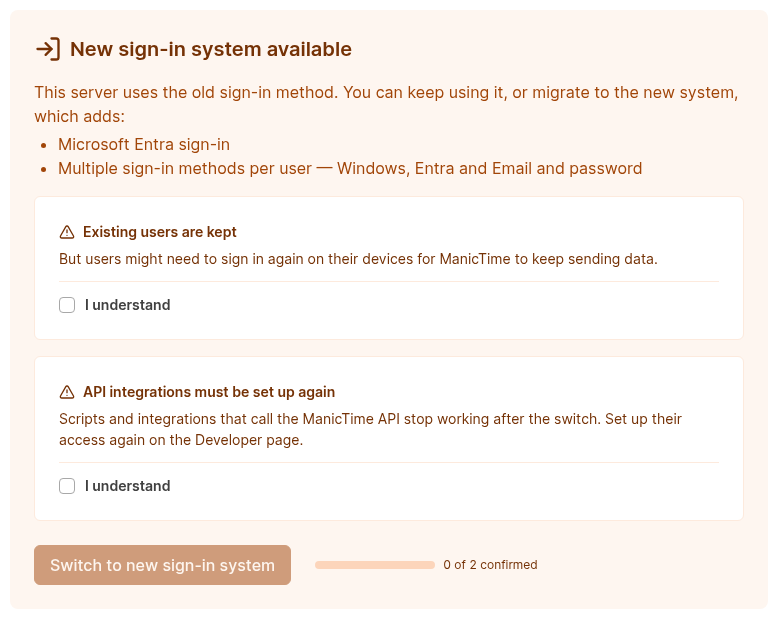
The switch button stays disabled until you select I understand on all cards.
After step 6, the page shows Switch pending. The server completes the switch when it starts again. Until the restart, you can click Cancel switch.
If the server cannot complete the switch, it keeps the old sign-in system. The page shows The switch could not be completed. The next restart tries again.
Duplicate email addresses
In the new sign-in system, each email address can belong to only one user. If more users have the same email address, the page shows the card Duplicate email addresses. The switch removes these email addresses from the Windows users that have them. After the switch, you can enter the correct email address on the Edit user page.
After the switch
- Add Microsoft Entra ID as a sign-in method if you need it. See Microsoft Entra sign-in.
- Add sign-in methods to users. See Users and teams.
- Create API tokens and API clients for your scripts and applications. See Developer.
- If you deploy ManicTime with a deployment file, check the Deployment file page. See Deploying to Windows users.